

Forum Replies Created
-
AuthorPosts
-
July 24, 2022 at 6:37 AM #1834592
@De4lt, I did that and it spits out two maps that partially overlap, but each have blank areas as well.
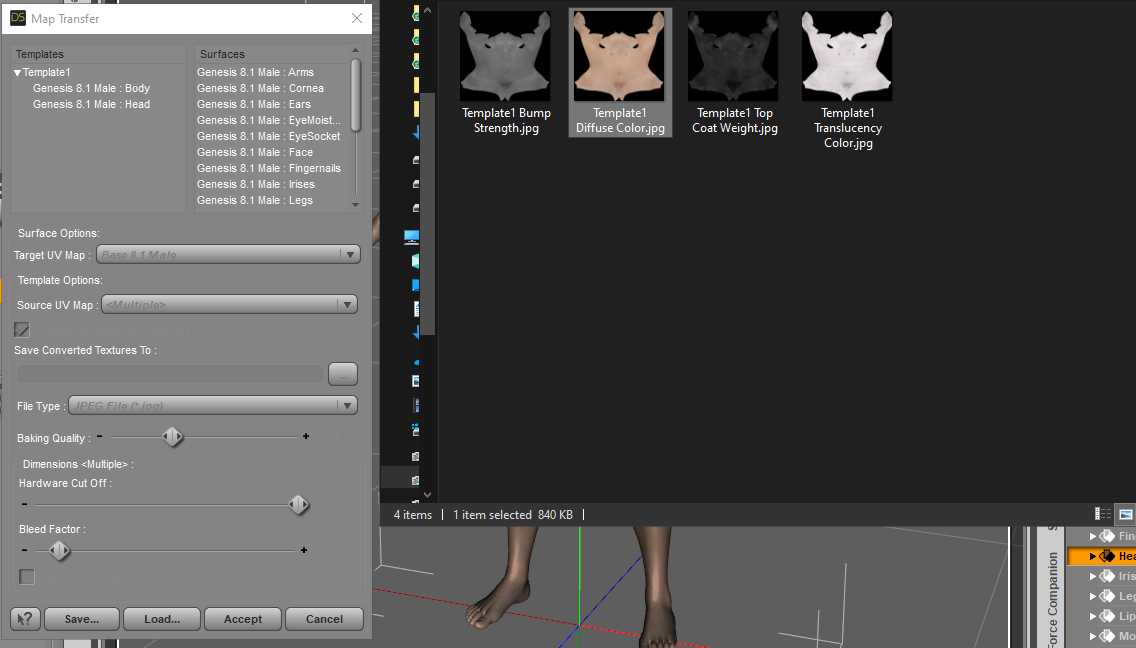
I tried it myself in the screenshot above with G8.1's default textures and the maps it created were mostly whole maps with no unsightly seams (but see "Problem" below). I even loaded the created maps onto G8M and they fit fine.
I just tried again with Jaheem for G8.1M. This was my workflow:
1. Launch Map Transfer Utility.
2. Right-click in left window and select New Template.
3. Drag "Genesis 8.1 Male Body" and "Genesis 8.1 Male Head" from right window to Template 1 in left window.
4. Select "Genesis 8.1 Male Body" under Template 1.
5. Change "Target UV" to "Base Male".
6. Select "Genesis 8.1 Male Head" under Template 1.
7. Change "Target UV" to "Base Male".
8. Select "Template 1"
9. Make sure Source UV is set to "Current"
10 Set "Type" to desired output (I use Jpeg).
11. Dial "Baking Quality" to 10
12. Leave all other settings at their default and click "Accept".Problem: Map Transfer Utility doesn't recognise the surfaces of the new PBR system so the maps on surface parameters such as Ambient Occlusion, Detail Normal, Dual Lobe Specular, and Detail Specular don't convert well (they don't include the neck region). This is probably due to the fact that a. the PBR skin system wasn't used when G8 was the prime figure at the time, and b. Daz haven't got around (or can't be bothered) to update Map Transfer Utility. Maybe they don't even want to, and would rather people use 8.1 until they release a new generation. They do want your money, after all!
Map Transfer will, however, convert maps on regular Iray Uber surfaces such as those originally used by G8M (Base Color, Translucency, Normal, Bump, Top Coat, etc). I tried it in Version 4.15.0.3 and the latest BETA and both produce the same results.
If you're trying to convert maps to use the PBR skin system on G8 you may well be stuck. If you want to use Iray Uber, then Map Transfer does work.
July 23, 2022 at 5:39 PM #1834430Don't you just put the Body and Head surfaces under the same template and set the target UV to Base Male/Base Female?
 April 10, 2022 at 5:10 AM #1794096
Go to a product they posted. At the top of the page is the name of the member who posted it. Don't click on the name, just hover over it and check the status bar at the bottom of the browser (or right-click>copy link). The last part of the link contains what you should use to send a DM.
e.g. for one of your product posts you'll see the link ends in /frank22/. So, to send a DM you'd use @frank22.
October 23, 2021 at 3:51 PM #1742638If I remember rightly, all 4th gen figures use a different method of conversion than from Gen 5 and Gen 6.
There was a really good tutorial in an online magazine called Daz Studio Creative that covered GenX2 over three issues, starting with issue 17. I think you can still view it here: https://issuu.com/philatdsc/docs/ds_creative_17
I don't think you can download it as a PDF but you can still follow the directions there.
August 18, 2021 at 10:16 AM #1721661I've found that, to solve this problem, you can simply add a Surface Selection Set to the geoshell. Call it 'Torso', and add the 'Body' and 'Head' surfaces to the selection set. Then, with the geoshell selected in the scene, any preset will load correctly.
For anyone unsure of the process, you select the geoshell in the Scene Tab, then go to the Surfaces Tab. Open the side menu and click "Edit Surface Selection Set(s)".
In the new window, add a selection set in the left pane and call it "Torso". Then select "Torso" in the left pane and tick "Body" and "Head" in the right pane. Click "Accept" and then go on to load your G8 preset. It should load normally without any further editing required. If there is any issue, just change the UV of the Body and Head surfaces to the UV of the geoshell preset you're applying.
e.g. in the case of Jepe's Bodyhair Project 78, the presets load fine after adding the Surface Selection Set but, if they didn't, you could simply apply the Base Male UV to the geoshell surfaces to fix any problem.
As an afterthought, you could also save the geoshell as a Wearable Preset after adding the Surface Selection Set, and load that preset onto a G8.1 figure whenever you want to use it in the future.
February 21, 2021 at 6:13 AM #1668496The Torment 8.1 Temptations Bundle PLUS ADD-ONS package contains the most up-to-date versions of the files. There was an update to the base figure, the Leonard HD figure and the Essential Poses package the day after it was released and I made sure those updates were included before I posted it. Hope that helps.
The link leads to a folder so you don't have to download the whole thing, just the bits you want/need.
February 18, 2021 at 10:49 AM #1667635Don't take my word for this as I'm not 100% sure, but I think I read something on a Daz forum a while ago about the kind of hair you're talking about, and that the kit (SDK?) for creating it is available only to Daz PAs. So, while a general user can create strand-based hair, the dForce hair with all the extra parameters is something only PAs can create at the moment.
December 11, 2020 at 1:36 PM #1649130Answering a few points in the original post...
Task Manager can make it look as though Iray isn't using a GPU when in fact it is. Under the Performance tab, on the left side you look for your GPU and select it. Depending on whether you have the graphs set to single or multiple engine, you need to change what it is monitoring to "CUDA". The mini graph on the left won't show what Iray is doing... but when you change one of the main graphs to CUDA, you should see it fill up to 95% plus.
RAM fills up because Daz Studio does EVERYTHING in RAM. When it comes to rendering, it seems to decompress every texture from whatever format it is in (jpg, png etc) into a raw, uncompressed format, recompress it (depending on your render settings), and then pass it to the GPU. Don't ask why, I've no idea. But that's why Daz seems to chew up so much RAM. It also fills up with geometry, lighting and such. It doesn't really matter to me how much RAM is being used, so long as the GPU is doing the rendering. If that's the case, CPU usage rarely goes above 30%, leaving my computer able to do other light things (such as browsing or downloading) while rendering.
As a general rule of thumb, if the render is going, and CPU usage is not maxed out, then the GPU is doing the work, regardless of what Task Manager suggests. Again, change the graph to CUDA to see all the hard labour going on.
Hope this helps.
July 27, 2020 at 7:30 AM #1617213Looks to me like this one:
-
AuthorPosts
