Home Page › Forums › General Chat › skin realism
- This topic has 16 replies, 4 voices, and was last updated 3 years, 8 months ago by
 Frank21.
-
AuthorPosts
-
January 16, 2023 at 10:02 PM #1914681
Character skins seem to look "airbrushed", like the same exact color everywhere on the character. And when in real life, skins are slightly different tones in different areas of the body. I can achieve this somewhat in post using lightroom or photoshop, but then that also changes everything else in the frame (sometimes in a negative way).
Any suggestions how to do it at the source and accomplish this within DAZ? I've tried running the maps through the same lightroom presets before rendering that i would have used on the final. That is hit or miss. And it can be a nightmare to tweak it to have to re-run the map through the preset and render again, just to see its still not good yet. Surely there's a better way.
January 16, 2023 at 11:47 PM #1914702@littlepleasures Thanks so much for the detailed response and link. That is some really great advice and knowledge. I'll start to try it out on my next render, thanks!
January 18, 2023 at 2:03 AM #1914995Thanks @Littlepleasures for the link to "Proper Subsurface Scatter Shading For Human Skin".
It looks like even the notoriously lazy me could try this!
Everything looks straightforward but he says "translucency color should be set by diffuse map" and then he ads: "again make sure to use a good detailed map if you want natural and realistic results, the more realistic your map the more natural your model"
Where do I find a "good" diffuse map for skin? Do you know of a character that has such a diffuse nap that I could use on other skins? Or how is it done?
It's the same thing for "base color doesnt need explaining just put your base map here but i highly recommand using a color map that looks natural and has lots of detail and no im not talking about resolution, im talking about color details skin details and all the natural and realistic stuff which most of daz characters lack"
He doesn't say where to find it...
Thanks!
January 18, 2023 at 7:26 AM #1915054@Littlepleasures Thanks for a really good and long answe!
Aah, now when I look closer into separate skin surfaces (for JASA Caprice) it looks like the Base Color and Translucency Color is using the same map for the individual surfaces (but different for face and torso etc).
That suggest I guess that using different maps from different characters would look....strange. Would you say that you either go for all the maps a characters has or you chose another character altogether?
I have never used a Bluejaunte character`s but the skins look actually very realistic! Will test one or two today.
I noted that Bluejaunte doesn't have that many darker colored skins other than Malika and the two darker kids, do you know of darker characters (from latina to black) that has good skins to work with?
BTW, do artists like SASE and JASA good skins in your opinion? Sometimes I really like them basically out of the box and sometimes it doesn't matter how you tweak - it's still a dull character. Its some of the white skin characters that I have been pleased with, but basically never with the darker skins.
Thanks a lot!
January 18, 2023 at 2:00 PM #1915249@Inversekinematics Thanks! Looks like a good read with a lot of pictures, just how I like it!
January 18, 2023 at 7:06 PM #1915334thanks for the link @inversekinematics
January 19, 2023 at 1:17 PM #1915659@Littlepleasures Thanks again for really good input!
January 19, 2023 at 2:14 PM #1915677https://www.nvidia.com/en-us/on-demand/session/gtcspring21-s31893/
From a presentation about the PBR shader in DAZ.
(There is also a pdf that you can download)January 19, 2023 at 9:20 PM #1915759thanks @thomasBR, that is another very good link!
I've been messing around with the settings from the document @littlepleausres posted. I havent had much luck yet though, i've followed all the steps as best i could interpret with the same values. But Skins just look WAY too dark, like black-skinned dark. Not sure why this is happening. Anyone else have any luck with it? What im producing looks nowhere near like the images in that document..
Also, should the settings in the documents apply to all skin surfaces ONLY, or should be skin & lips, or skin-lips-nails?
January 20, 2023 at 6:32 PM #1916116@littlepleasures
I think the problem was the maps I was using, last night I actually did use some default maps and had better a better outcome. I think because the maps I initially tried were already really good (its a character skin i've been working with a long time and had lots of adjustments), they really only needed a tweak during post. But on default maps they needed more work.But yeah I definitely had all the settings correct, and i'll try again when I start a new character from scratch, i'll try this again. Also good to know about selecting specific surfaces. Thanks again!
January 22, 2023 at 12:40 AM #1916662@littlepleasures
I have great results from changing to your recommended render settings and switching to spectral, and the spectral settings. I've kept the spectral color space set at the default rec709, but there are a number of other ones (xyz,rec2020,aces,acescg), is rec709 the best one to keep using? It wasnt mentioned at that link.But as for the other settings, on the actual surfaces, i'm still having no luck with those that were talked about in that link. The latest comments at that page suggest this doesnt work with newer versions of DAZ because some changes in the software were made. Im not sure if that is true or not, or if my problems are something else, but i've followed them to the letter and get wrong results. But the rendering settings by themselves work GREAT on the maps and surface settings that i've already been using (with a few minor +/- on the numbers).
January 22, 2023 at 4:38 PM #1916949I'm not sure what is wrong either, but i'm already more than satisfied just using the rendering settings changes and using the spectral. It was just the tweaking i needed. Im getting amazing results, no need for me to even use post anymore.
The only thing I have noticed is when changing to those render settings, the blacks are a bit washed out in clothes and other blacks. So it does great on the skins but some of the other things take a hit. Wish there was a way to render each object with its own render setting.
January 29, 2023 at 7:50 PM #1920224@inversekinematics that looks pretty good IMO also. Was that done following the same settings from same document from the link posted above?
January 30, 2023 at 5:59 PM #1920662@littlepleasures that looks pretty good, too. I'm not sure why I don't get the same look when I try it though. I keep all the same settings exact as in the document time and again, but still turns the characters deep dark, near black. It happens when I switch SSS mode from Mono to Chromatic. I believe that is the catalyst that kills it. I do notice that if I leave all the default settings as they are (and dont use the document at all) and simply change the translucency weight the opposite direction as the document says ( I put it at .010 or so) and it looks almost the same result as the document.
January 30, 2023 at 9:51 PM #1920716@Littlepleasures - "It’s important when testing SSS changes like these to test with a variety of lighting types." agree 100%.
The skin in your second picture with direct sunlight looks way too bright IMO. I know what I'm about to say is absolute 3D sacrilege, but sometimes when the skin is too bright I just select all the skin and darken down the base colour from pure white to more gray. I didn't want to lower the overall lighting because it was just right for the rest of the scene. A very crude hack I know but it seemed to work OK.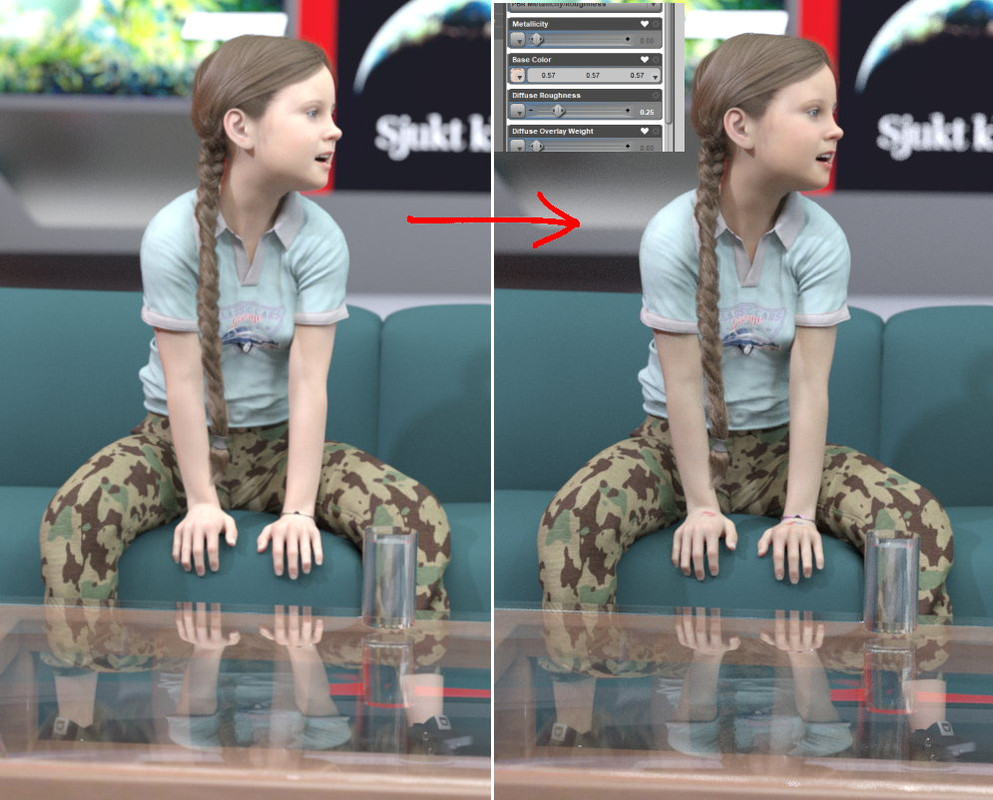
-
AuthorPosts






- You must be logged in to reply to this topic.
