Home Page › Forums › General Chat › Easy way to convert 8.1 textures to 8?
- This topic has 7 replies, 4 voices, and was last updated 4 years, 2 months ago by
 Dimer.
-
AuthorPosts
-
July 22, 2022 at 12:50 AM #1833845
I'm using the map transfer tool to convert some G8.1F and G8.1M mercant resources to G8F and G8M, but there a couple of maps that need to be combined and are being a pain, so I'm wondering if there's an easier way.
Before someone asks, why not use 8.1? Because G8 textures work on both and G8.1 doesn't.
July 22, 2022 at 1:30 AM #1833850If you want to use G8.1 maps on a G8 character I'd save the G8 as a Shaping Preset (not Character Preset) and apply it to the 8.1 base or HD figure. Then you won't have a problem with the maps on it.
July 22, 2022 at 2:15 AM #1833854If I was making characters, yeah. But I'm going to be modifying these to mix with other characters' maps. Which is why I want them to work with both 8 and 8.1.
July 23, 2022 at 5:39 PM #1834430Don't you just put the Body and Head surfaces under the same template and set the target UV to Base Male/Base Female?
 July 23, 2022 at 6:06 PM #1834437
Not sure if there is an easy way as the Torso file for G8 is now two individual files in G8.1 (Head and Body).
Though, you can convert the other way easy enough, so I don't see why someone hasn't made a plugin or whatever to do the reverse.July 24, 2022 at 12:01 AM #1834527@De4lt, I did that and it spits out two maps that partially overlap, but each have blank areas as well.
July 24, 2022 at 6:37 AM #1834592@De4lt, I did that and it spits out two maps that partially overlap, but each have blank areas as well.
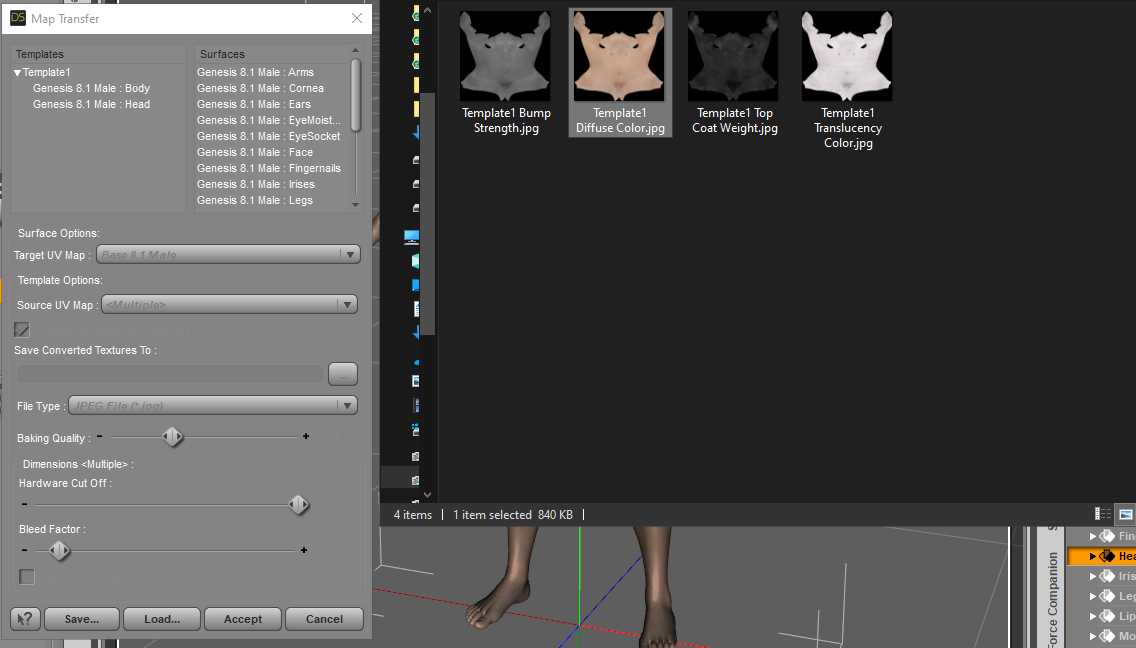
I tried it myself in the screenshot above with G8.1's default textures and the maps it created were mostly whole maps with no unsightly seams (but see "Problem" below). I even loaded the created maps onto G8M and they fit fine.
I just tried again with Jaheem for G8.1M. This was my workflow:
1. Launch Map Transfer Utility.
2. Right-click in left window and select New Template.
3. Drag "Genesis 8.1 Male Body" and "Genesis 8.1 Male Head" from right window to Template 1 in left window.
4. Select "Genesis 8.1 Male Body" under Template 1.
5. Change "Target UV" to "Base Male".
6. Select "Genesis 8.1 Male Head" under Template 1.
7. Change "Target UV" to "Base Male".
8. Select "Template 1"
9. Make sure Source UV is set to "Current"
10 Set "Type" to desired output (I use Jpeg).
11. Dial "Baking Quality" to 10
12. Leave all other settings at their default and click "Accept".Problem: Map Transfer Utility doesn't recognise the surfaces of the new PBR system so the maps on surface parameters such as Ambient Occlusion, Detail Normal, Dual Lobe Specular, and Detail Specular don't convert well (they don't include the neck region). This is probably due to the fact that a. the PBR skin system wasn't used when G8 was the prime figure at the time, and b. Daz haven't got around (or can't be bothered) to update Map Transfer Utility. Maybe they don't even want to, and would rather people use 8.1 until they release a new generation. They do want your money, after all!
Map Transfer will, however, convert maps on regular Iray Uber surfaces such as those originally used by G8M (Base Color, Translucency, Normal, Bump, Top Coat, etc). I tried it in Version 4.15.0.3 and the latest BETA and both produce the same results.
If you're trying to convert maps to use the PBR skin system on G8 you may well be stuck. If you want to use Iray Uber, then Map Transfer does work.
July 26, 2022 at 1:12 AM #1835275Thanks for the help! Yeah, it's PBR, but I should be able to convert it to Uber to get most or all of it.
Edit: Since I'm just converting the maps and the settings don't matter, I can just put the maps Uber doesn't use on some other setting.
-
AuthorPosts






- You must be logged in to reply to this topic.
