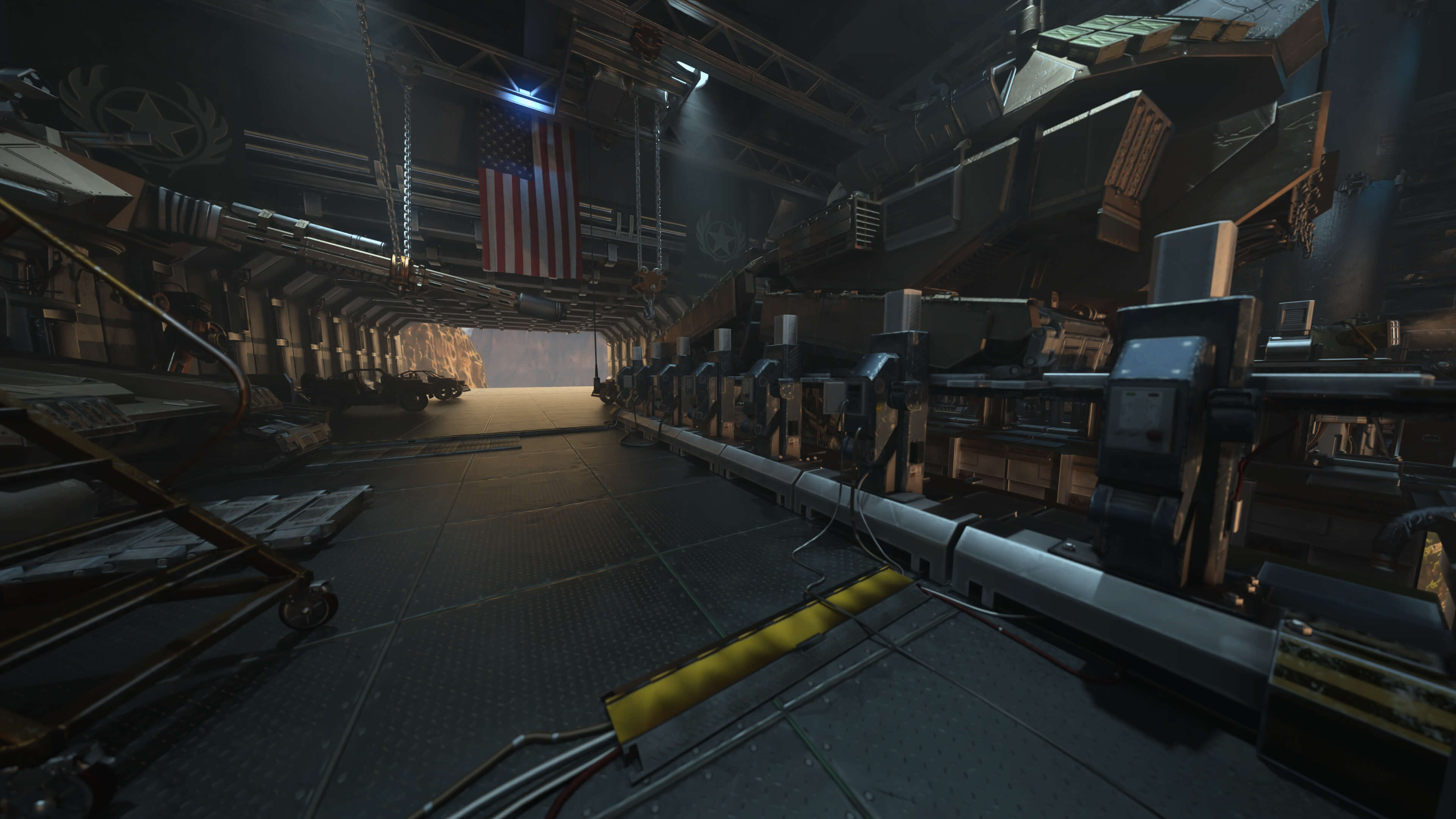
Mk11 Tank Garage for DAZ Studio
Tank Garage Environment for DAZ Studio
Detailed military tank garage environment with 4K textures for cinematic and action renders.
A detailed military garage environment for DAZ Studio, featuring an industrial atmosphere suitable for cinematic renders, action scenes, military-themed artwork, and character storytelling.
The setting offers a rugged military aesthetic, making it an excellent backdrop for soldiers, tactical characters, and dramatic encounters. Its industrial surroundings provide opportunities for both wide environmental shots and close-up character compositions.
The environment features 4K high-resolution textures, providing detailed surfaces and visual clarity across the scene.
Key Features
- Military tank garage environment
- 4K high-resolution textures
- Industrial and military atmosphere
- Suitable for close-up and wide-angle renders
- Detailed environment for cinematic compositions
- Fog cube for additional atmosphere
#Important Notes
*1. Fog Cube & Performance*
If the scene feels too heavy or you experience performance issues, you can *hide the Fog Cube* from the Scene pane.
The fog is optional and can be disabled without removing the main environment.
*2. Backdrop Image — Manual Setup Required*
⚠ **IMPORTANT:** Unfortunately, I was unable to save the backdrop image directly into the DAZ Studio scene preset. However, the backdrop image is included in the product files and can be added manually.
*Backdrop Image Location:*
`Runtime > Textures > CrypticNull > Enviroments > (Name) > Tank Garage > Backdrop.png`
*How to Add the Backdrop in DAZ Studio:*
1. Open the Tank Garage scene in DAZ Studio.
2. Navigate to *Window > Panes (Tabs) > Environment* to open the Environment pane.
3. In the Environment pane, locate the *Backdrop* section.
4. Set the backdrop type to *Image* if it is not already selected.
5. Click the image selection field and choose *Browse*.
6. Navigate to the folder mentioned above and select `Backdrop.png`.
7. The backdrop should now appear behind your scene when viewed through the camera.
I apologize for the inconvenience and appreciate your understanding.
---
A versatile addition to your DAZ Studio environment library, offering a gritty military setting for everything from character-focused portraits to large-scale cinematic scenes.
CrypticNull
https://www.renderhub.com/crypticnull/mk11-tank-garage-for-daz-studio

