FaceMocap Genesis 8/8.1/9
FaceMocap Genesis 8/8.1/9
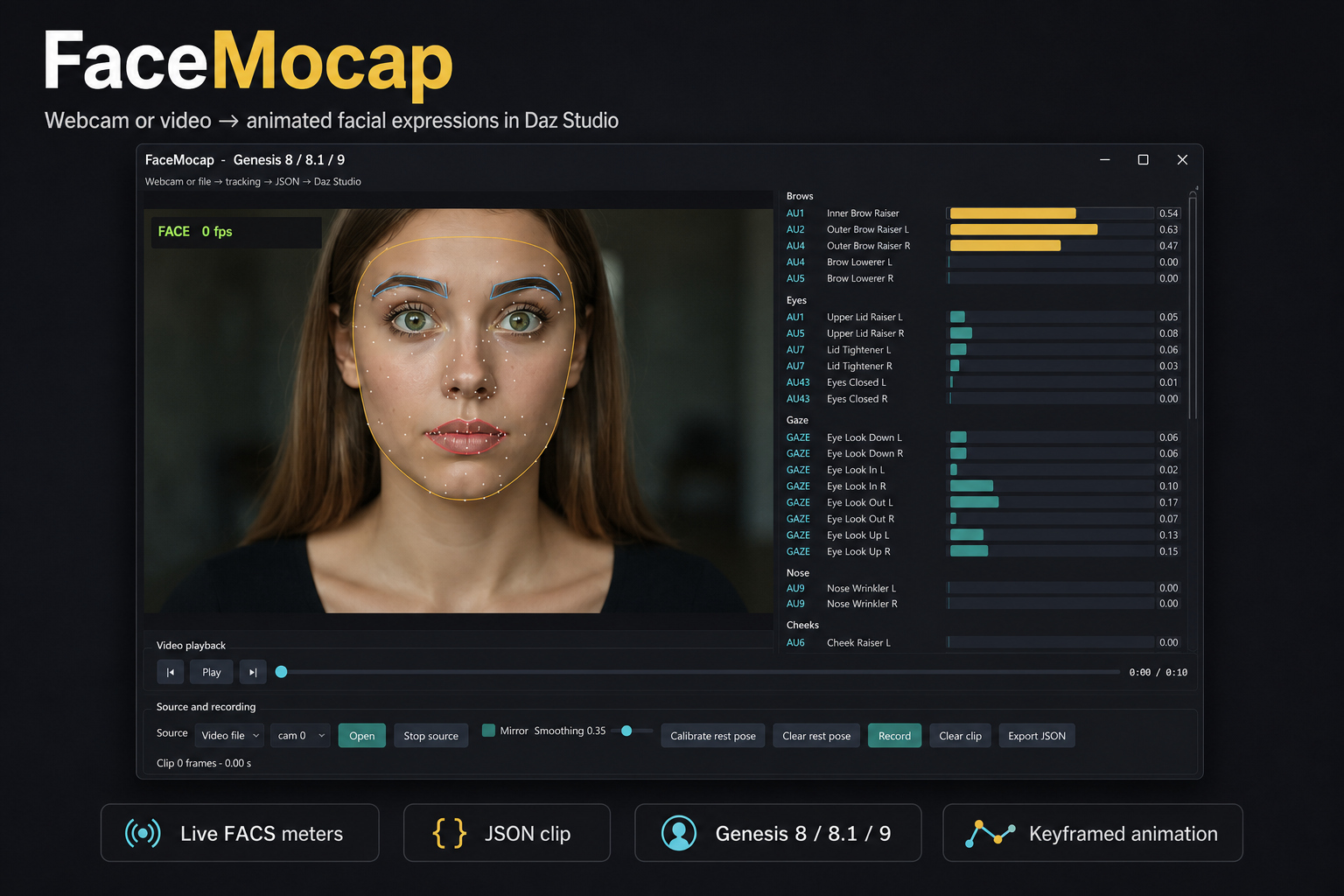
FaceMocap records a real face from a webcam or a video file and converts the
performance into animated facial expressions on Genesis 8, Genesis 8.1 and
Genesis 9 in Daz Studio.
You see the tracking live: landmarks on the preview, FACS / Action Unit meters
for brows, eyes, gaze, nose, cheeks, jaw and mouth. Calibrate a rest pose,
record a clip, export JSON, then run the included Daz script to key the
figure’s official face controls.
What it does
• Source: webcam or video (mp4, mov, avi, mkv, webm)
• Live face tracking with landmark overlay
• FACS / ARKit-style blendshape meters while you record
• Rest-pose calibration so the clip starts from a neutral face
• Adjustable smoothing (less jitter or more snap)
• Mirror preview (preview only — tracking L/R is unchanged)
• Record / Stop, plus Play / Pause / seek for video files
• Export a JSON clip
• Daz Studio import script keys the animation onto the selected figure
What you get in Daz
• Keyframed facial animation (expressions, blinks, jaw, mouth, gaze)
• Auto-detects Genesis 8, 8.1 or 9 from the selected figure
• Uses official controls: FACS Units on G9 / G8.1, Pose Controls > Head
(eCTRL) on G8
• Eye look on G8.1 uses Eye Look Side-Side / Up-Down and turns Eye Look
Automatic off so the eyeballs actually move
• A match log next to the JSON (FaceMocap_daz_match.txt)
What is included
• Windows installer for the FaceMocap tracker (no admin rights required)
• FaceMocap_Import.dsa — Daz Studio import script
• Readme.txt and Readme.dsa (open the .dsa in Script IDE for in-app help)
Requirements
• Windows 10 or 11
• Webcam and/or a video file of a face
• Daz Studio 4.15 or 5
• A Genesis 8, 8.1 or 9 figure with official face controls loaded
(FACS Units for G9 / G8.1, Pose Controls > Head for G8)
How to use
1. Install and open FaceMocap. Choose Webcam or Video file, then Open.
2. Calibrate rest pose (relaxed face, or pause the video on a neutral frame).
3. Record the performance, then Export JSON.
4. In Daz Studio, select the figure, open FaceMocap_Import.dsa in Script IDE,
Execute, and pick the JSON.
intenzo, Genesis 8/8.1/9

