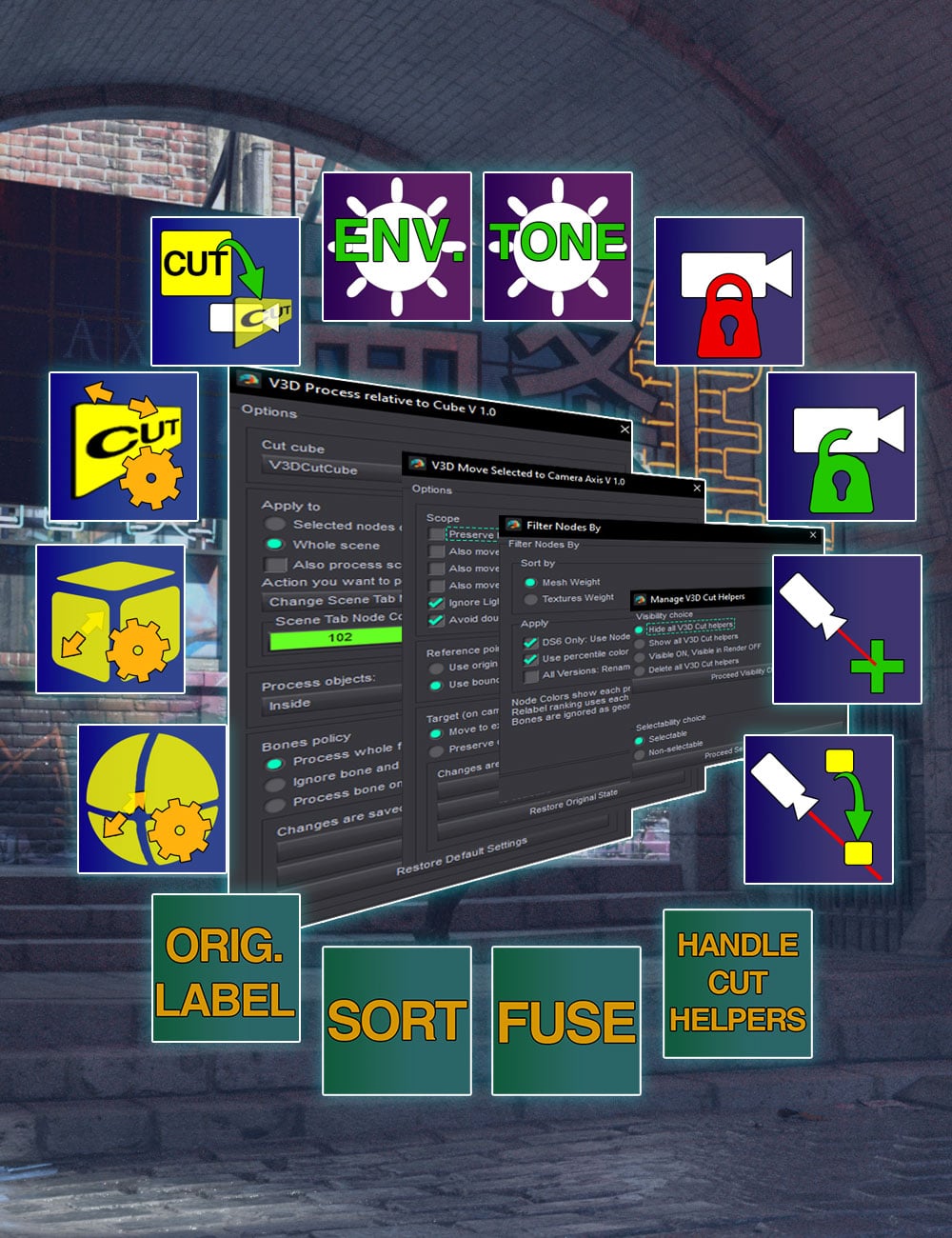
V3D Scene Tools
V3D Scene Tools is a collection of utility scripts designed to make scene management faster, clearer, and more flexible. Restore render settings, protect cameras, create visible focus references, move figures or objects onto the camera axis, process elements by position, reorganize Instance Groups, and identify what is weighing down your scene.
Return to a clean render starting point: Loaded several scenes, presets, HDRIs, or lighting products and ended up with Environment or Tone Mapper settings that are difficult to untangle?
Restore the default Daz Studio Environment or Tone Mapper settings with one click, without affecting existing scene contents. This gives you a clean starting point without searching through every altered setting.
Protect your camera work: Finding the right framing takes time; accidentally moving the camera takes seconds. Smart Lock Cameras protects the selected camera, the active camera, or all scene cameras against accidental translation, rotation, or property changes, while keeping Visibility and Selectability available. Smart Unlock Cameras restores full access when needed.
Create visible camera focus references: A camera’s focal point is normally represented only by a numerical distance. Add a Focus Point creates a visible, selectable Null directly at the focal point of the selected or active camera. By default, it is not parented and is not assigned as a target, leaving you free to use it however you like. Use it to mark an area, target another camera, orbit around it, prepare depth-of-field adjustments, align elements, compare focal positions, or place objects at the focal point.
Center objects on the camera axis without losing your view: An object may be in the scene but completely outside the camera frame. Finding it and moving it into view can be tedious, especially in a heavy scene. Center Selected on Camera Axis moves selected nodes onto the optical axis of the selected or active camera. Place the selection at the focal point or preserve its original distance, use its origin or bounding-box center as the reference, and preserve its height so figures, furniture, vehicles, and props remain on the floor while centered horizontally.
Move only the selected node, include its children or parent hierarchy, or translate most of the scene around a reference while keeping lights and cameras in place. Nested selections are handled safely so parents and selected children are not moved twice. Figures remain intact: bones, fitted clothing, hair, and other followers stay with their figure, and a selected bone is never moved independently.
Use it to recover an off-screen object, place a character in front of a camera, center a prop without changing the framing, move a figure using a selected body part, or reposition an environment around the subject.
Process scene nodes according to their position: V3D Scene Tools includes Cut Plane, Cut Cube, and Cut Sphere helpers. Move, rotate, and scale them to define the area to process. A Cut Plane classifies nodes as In Front, Behind, or Crossing. Cut Cubes and Cut Spheres classify them as Inside, Outside, or Crossing. Cube and Sphere helpers can be scaled uniformly or non-uniformly to create box-shaped, elongated, flattened, spherical, or ellipsoidal areas.
Using the corresponding scripts, matching nodes can be hidden, shown, deleted, or assigned a Node Color in the Daz Studio 6 Scene pane. Instance Groups can be split and regrouped by position before matching instances are hidden or shown. Apply an operation to selected nodes or all eligible scene nodes. Lights can be included or left untouched, while figures can be processed as complete figures, ignored with their bones, or analyzed bone by bone.
These tools offer more flexibility than an Iray Section Plane because you can define multiple areas and decide exactly which nodes are affected in each one. Keep an emissive, reflective, or shadow-casting object active because it contributes to the render, while hiding other nodes, even in another area, because they obstruct your work or do not contribute to the final image.
For example, hide selected walls between a camera and an interior without clipping every intersected mesh, while keeping a shadow-casting roof, an emissive panel, or a reflective object active. A dedicated script aligns a selected Cut Plane perpendicular to the active camera, making it easy to process nodes in front of, behind, or across a camera-facing plane. You can also move, rotate, and scale any Cut Helper to match your exact needs.
Use these tools to reveal an interior, isolate a cave or forest clearing, hide everything outside a working area, identify objects crossing a boundary, prepare a cutaway, or clear space inside an instanced forest for a building or road.
A manager lets you hide, show, delete, or make all Cut Plane, Cut Cube, and Cut Sphere helpers unselectable at once, so they do not interfere with renders or scene selection.
Control and split large Instance Groups by area: Large forests, crowds, scattered props, and architectural environments often rely on Instance Groups, but sometimes you need to clear a specific area without affecting the instances elsewhere.
The Plane, Cube, and Sphere tools classify individual instances by origin, split them by position, and reorganize them into new Instance Groups. Create an empty area inside an instanced forest, hide instances behind a plane or outside a working zone, reveal only those inside a volume, or divide one group into visible and hidden sections.
After several splits, Fuse Compatible Instance Groups finds groups sharing the same target, copy mode, and visibility state, then consolidates each compatible set. This reduces Scene pane clutter while preserving groups requiring different settings
Find the nodes making your scene heavy: A slow viewport or heavy scene does not always reveal which item is responsible. Filter Nodes by Weight identifies nodes by mesh or texture weight. Mesh Weight evaluates mesh faces; Texture Weight evaluates the number and dimensions of texture maps used by each node.
The script can prefix node labels so the Scene pane can be sorted alphabetically by weight. In Daz Studio 6, it can also apply a Node Color range from lighter to heavier items, using a linear scale closer to actual values or a percentile scale that uses the colors more broadly.
Renaming is available in Daz Studio 4 and 6 and fully reversible with Restore Original Node Labels. In Daz Studio 6, it is optional, so Node Colors can be used alone. The tool shows where the weight comes from so you can hide or replace an item, reduce its textures or subdivision, simplify the scene, or leave it unchanged.
Use it when navigation or render preparation becomes slow, you need to locate large texture sets, or you want to understand which props and figures contribute most to scene complexity.
Compatibility: V3D Scene Tools was designed for Daz Studio 4 and Daz Studio 6. Scene pane Node Color features are available only in supported versions of Daz Studio 6.
Whether you are working on a small portrait or an environment containing thousands of instances, V3D Scene Tools replaces repeated manual selection, searching, positioning, visibility changes, and scene organization with faster, flexible workflows.
118023, V3Digitimes
https://www.daz3d.com/v3d-scene-tools
File Hosting: drive.google.com
(Generated from Filled Request)

