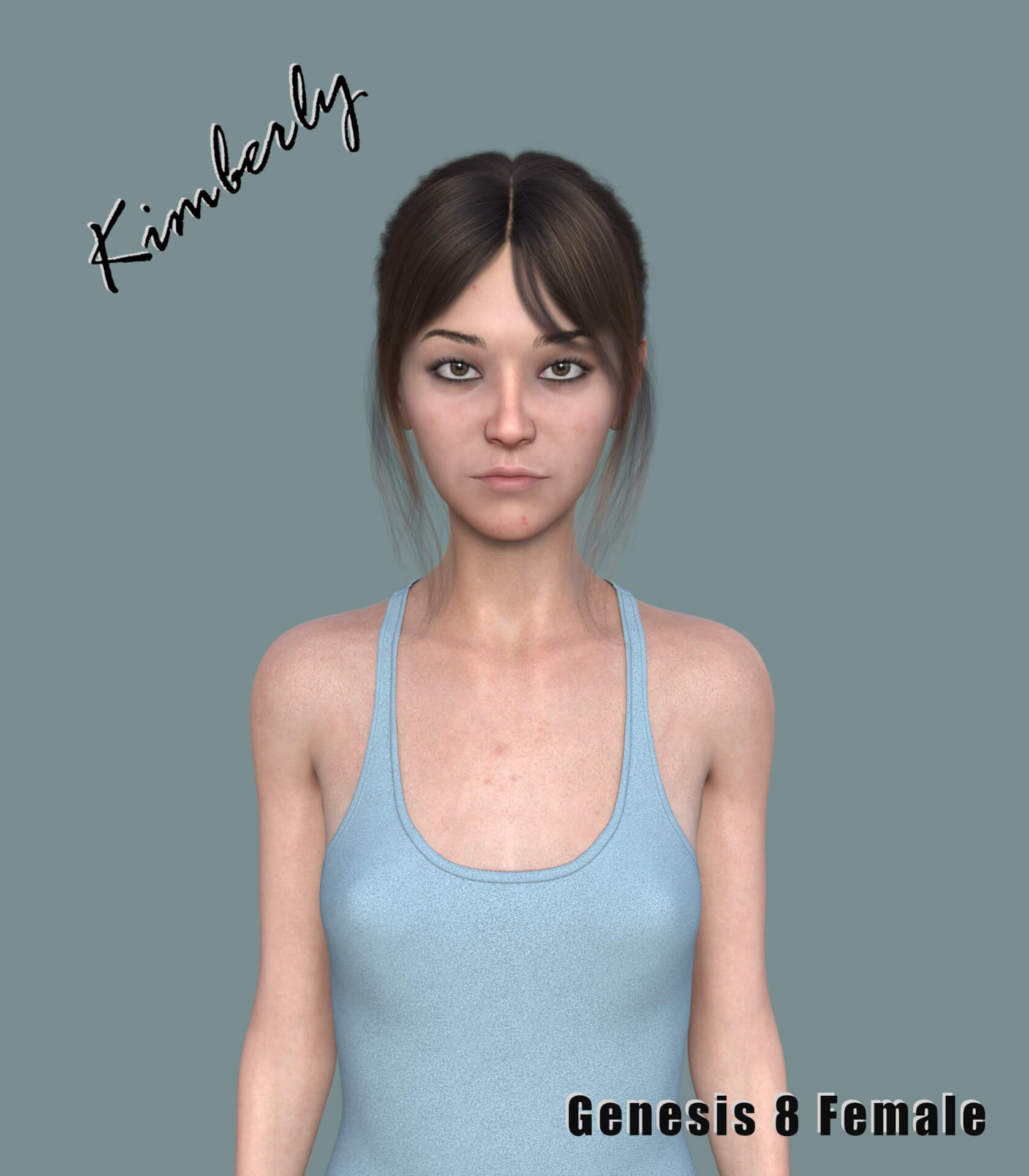
Kimberly3DModel
3 Morphs Total in the parameters.
- KimberlyHead
- KimberlyBody
- Kimberly (Full)
Allowing you to combine Kimberly with your other models. All found in Parameters. Search: Kimberly
Apply Head and Body Presets and Materials Presets for Existing Models.
Actor File for loading Kimberly in as a New Character.
9 Material Presets that can be applied to any G8 female.
Also 2 Gens for Base Anatomical Elements.
1 of the 9 Material presets has some pubic hair and is only available with Brows and Acne full. There are also two loose face skins in the Materials folder that can increase the acne on the face if manually applied.
Note: New Genesis Genitalia and Golden Palace are the recommended attachable vaginas IMO.
2 Poses included. A Zero and Attention pose. These are located in a separate sub-folder next to the Materials sub-folder in the Kimberly Character sub-folder. People - Genesis 8 Females - Characters - MrTaured - Kimberly - Poses
There is an Eye makeup Diffuse Overlay Weight for manipulating a custom eyeliner/shadow overlay. The Irises are a Light Default color so picking a custom color is easy in the surface settings too. There is another overlay on the torso that allows you to change her nipple color in the same way as the Makeup! The colors will transfer to attachable products when copy materials is activated. There is also a Lips Overlay for lipstick as well!
How to use the overlays if not familiar: Once the skin preset is activated on Kimberly, or any model, click on the model and in the surface tab, go to the torso and you will see > Diffuse Overlay Weight and that there is a black and white image there. This is where it's located and manipulated. The Diffuse Overlay Weight will only show up in Iray view or in a render. The Diffuse overlay dial will change the opacity of added color in Iray and the Diffuse Overlay Color will change the color of the nipples in Iray. You won't see any changes or the overlay itself in perspective view, only Iray view. You can take that Diffuse Overlay image and put it on any model manually to use it as an Overlay. The overlay is an image over the skin. There is no preset for this, and you use the surface tab to manipulate it solely. Setting the diffuse overlay weight main dial to zero will remove any added color.
The same above is applied to the overlay weight used for makeup. Click model and go to surface tab and then click face. Diffuse Overlay Weight dial changes opacity of added color and diffuse overlay color changes the color of the overlay like the nipples. Setting dial to zero removes makeup complete, setting dial to 100% adds in fully.
The Iris is grey so using the base color like this in surface tab is how you can change her eye color easily, there are no presets for these functions. Use surface tab. Click model, surface, Irises, and change the main color of the iris to whatever you like. Lighter colors show up better, darker appear blackish, use translucency to adjust or choose a lighter color.
mrtaured, Genesis 8 Female

